

Mazda Apple CarPlay and Android Auto setup begins with your phone, Mazda Connect, and the correct connection method. The first pairing asks for more input than later starts. However, wired and wireless connections follow different steps. Therefore, knowing which setup your Mazda uses can prevent repeated pairing attempts.
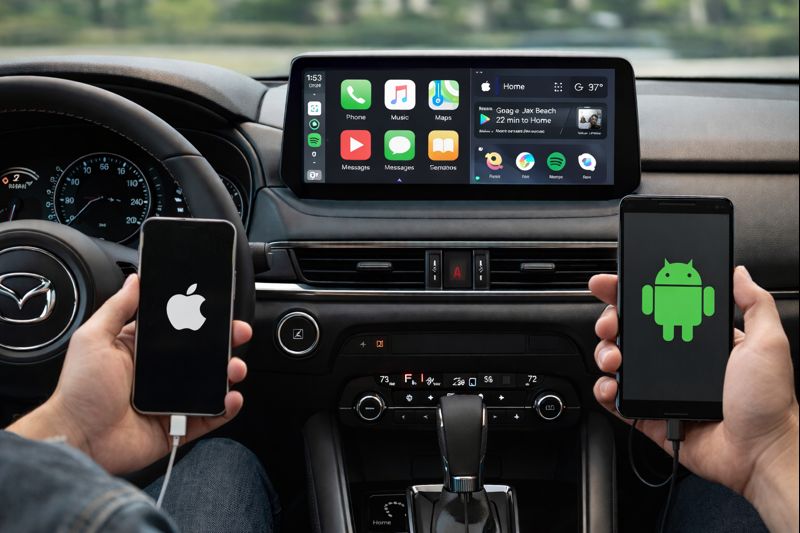
Mazda Apple CarPlay and Android Auto Setup
Apple CarPlay and Android Auto place supported phone apps on the Mazda Connect display. Your phone still runs those apps while Mazda Connect provides the in-car interface. Therefore, phone permissions and connection settings matter during the first setup.
How do you connect Apple CarPlay or Android Auto to a Mazda? Start by confirming that the phone supports the platform. Next, make sure Bluetooth is active. Then connect through the correct USB port or begin wireless pairing when your Mazda supports it. Additionally, follow every prompt on the phone and center display.
Apple CarPlay may ask for approval while the phone is locked. Android Auto may request access to calls, contacts, messages, and media. Therefore, those permissions shape what appears through Mazda Connect. In addition, current Mazda Connect layouts may use Bluetooth during the first Android Auto pairing.
Once pairing finishes, Mazda Connect can store the device for later trips. Some Mazda configurations can reconnect after the next vehicle start. However, several saved phones can change which device connects first. Therefore, connection priority settings may need review when the wrong phone links.
Wired and Wireless Connection Methods
Wired access sends the phone connection through a compatible USB cable and designated vehicle port. Wireless access uses Bluetooth during pairing and Wi-Fi for the continuing link. Therefore, both methods can present supported phone apps through compatible Mazda equipment.
Does every Mazda support wireless Apple CarPlay or Android Auto? No. Equipment varies across models, trims, and production years. Therefore, verify your exact Mazda before treating a missing wireless option as a fault.
Before pairing, check which connection path your Mazda supports. That review should cover the following points:
- A wired setup starts by connecting the phone to the correct USB data port. Mazda notes that port location varies by model.
- Wireless setup starts with Bluetooth and Wi-Fi active on the phone. The pairing process then moves through approval prompts.
- Some Mazda configurations support both wired and wireless access. Therefore, you can choose the method that suits the trip.
- A charging-only USB port may not carry phone data. Therefore, use the port listed for smartphone integration in the owner’s manual.
After the first setup, compatible wireless configurations can reconnect on later starts. Still, a driver may choose USB when charging matters. A wired connection can also provide a useful comparison when wireless pairing is not completing.
How Mazda Connect Controls Smartphone Apps
Mazda Connect remains the vehicle interface when Apple CarPlay or Android Auto is active. However, the phone supplies the supported apps and account data. Therefore, learning the Mazda controls is part of a complete setup.
How do you move through CarPlay or Android Auto once connected? Use the Mazda controls fitted to your vehicle. The Commander knob can move through menus on applicable Mazda Connect layouts. Steering wheel buttons can handle several phone and audio tasks. Additionally, voice input can open supported requests without reaching for the phone.
Mazda guidance also gives drivers a path back to the native Mazda Connect interface. On compatible layouts, the Home control can switch between smartphone integration and Mazda menus. In addition, some current Mazda Connect versions include touchscreen operation in certain settings.
This layout keeps core phone tasks available through the center display. Navigation, calls, messages, audio, and supported apps remain close to the driving position. However, the exact control method can vary by Mazda. Therefore, check the owner’s manual when the screen layout differs from a general guide.
Mazda Model and Model Year Differences
Mazda connectivity changed as newer infotainment hardware and wireless features arrived. A 2019 Mazda may not follow the same pairing path as a 2026 Mazda. Therefore, model and production year should be checked before following any setup sequence.
Why do online instructions sometimes look different from your Mazda? They may describe another Mazda Connect generation or equipment package. Additionally, the USB port can sit in another location. Wireless access may also appear on one trim and remain absent on another.
Before troubleshooting, confirm the model, model year, trim, and smartphone integration type. Then review whether your Mazda lists wired access, wireless access, or both. In addition, confirm which USB port carries data because some ports may focus on charging.
Newer Mazda Connect layouts can also store several paired devices. Therefore, connection order matters when more than one phone is registered. If the wrong phone links first, changing device priority may solve the issue. This step may save you from deleting every saved connection.
The owner’s manual remains the strongest source for controls tied to one exact Mazda. Additionally, Tom Bush Mazda can assist when your menu or pairing sequence looks different.
Troubleshooting Apple CarPlay and Android Auto
A failed connection can begin on the phone, cable, saved pairing record, or Mazda Connect settings. A clear diagnostic order makes the cause easier to isolate. Therefore, begin with simple checks before deleting devices or changing several settings.
Work through these checks in order:
- First, confirm that the phone software is current and that CarPlay or Android Auto remains enabled. Then restart the phone if needed.
- Next, verify Bluetooth and Wi-Fi for a wireless connection. For wired access, inspect the cable and correct USB data port.
- Then review the saved device inside Mazda Connect. Confirm that smartphone integration remains enabled for that phone.
- Additionally, check device priority when several phones are stored. A lower priority phone may wait while another registered device connects.
- Finally, remove the pairing from both the phone and Mazda Connect when earlier checks fail. Then pair the phone again and approve each prompt.
However, service review makes sense when the same problem remains after those checks. Tom Bush Mazda can inspect vehicle settings, software status, ports, and related infotainment concerns. A technician can also confirm whether the Mazda supports the connection method you are trying to use.
Once your phone connects correctly, later trips should require less setup. You will know how the phone links and which controls manage it. In addition, you will know where to look when something changes. That knowledge makes Mazda Connect easier to use without turning every connection problem into a guessing game.
Connect with us


